A lot of times, the iPhone screen stops working, that means you’re not able to control the actions while using your phone. The most common reason for iPhone screen not working is dropping the phone more often, which leads to display or screen not working.
Here is a guide on what to do if the iPhone screen has stopped working, so let us get started!
Why does the iPhone screen stop working?
An iPhone screen stops working when you drop the phone on a hard surface, spill water or drop your phone in the water, etc. These reasons are the most common ones after which it is very likely for an iPhone touch screen to stop working.
Below mentioned are the ways to try and fix your iPhone screen:
Check the screen of your iPhone
The basic step to start with is checking if the screen of yours has any dirt or anything sticky on it, and wipe it off with a cloth. Make sure to wash your hands as sometimes the dirt particles or the stickiness on your fingers can become the reason for the touch not working properly.
Force restart your phone
Switching off your phone and then turning it back on after a few seconds can solve a lot of basic problems of your device. Sometimes, you might need to force restart your phone to work properly. The force restart procedure varies with the model of your phone, as mentioned below:
iPhone X, iPhone 8, and iPhone 8 Plus: Press the up volume button and release, and then press the down volume button and release instantly. Next, hold the power button for a few seconds until the phone restarts.
iPhone 7 and iPhone 7 Plus: Press and hold together the power button and the volume down button for a few seconds, till the phone restarts.
iPhone 6s and earlier: Press and hold together the home and power button for a few seconds, till the phone restarts.
Update, Delete, and Reinstall applications if required
If a particular application is not working, while the phone’s touch is working properly for all other actions, the app might be creating an issue. For such an issue, you can check for the updates from the App Store if any and update the application. If there are no updates available, you can delete and then reinstall the application.
To delete an application, press and hold the app icon till the ‘X’ icon appears. Tap on the ‘X’ icon and click on the ‘Delete’ button from the pop-up.
You can also contact the application support and report the issue.
Delete unwanted data on your iPhone
The touch screen can stop working, or the phone may get slow when you pile up a lot of applications on your phone, and the storage gets full. You can check the storage of your phone in the iPhone storage section under the general tab.
To clear out some storage, you may delete the applications you don’t use much or the apps that you can access via a browser like Facebook.
You can also store media in the iCloud storage and free up space on your phone.
Restore your iPhone
If all of the above ways do not work for you and don’t fix the touch screen issue, you might need to restore your iPhone. A restore means all the data on your phone will get deleted, and thus it’s important to keep a back up for the same.
Cracked or damaged screen
If a screen gets broken, the clear reason for your touch screen not working is its damage caused due to the dropping of the phone. Though screen replacement is an easy option and might fix the issue, it is not always the most convenient one due to its expense.
I’m Emma Justin . I’m a web developer living in USA. I am a fan of technology, entrepreneurship, and web development. I’m also interested in education and writing. You can visit my company website with a click on the button above.
Microsoft has been supporting printer and file sharing since the launch of Windows 95. The feature associated with networking is very much useful on networks widely used at homes. However, it can cause issues and become a security threat to public networks. If you want to enable the feature to share files and access the printer, then you should also know to disable it. You can follow the below-given instructions to enabling and disabling the feature along with sharing printer in Windows:-
Note: The instructions given below apply to Windows 8, 10, 7, XP and Vista. Moreover, the users find a slight difference in the process to enable and disable along with sharing printers in !indows 10, 8 and 7.
Enable or disable File and Printer Sharing in Windows 7, 8 and 10.
First of all, search for the Control panel and open it.
You can press the Win+R keys in the combination to type Control and press down Enter.
It will launch the dialog box Run to launch the Control panel further.
Choose Network & the Internet in the Control Panel.
If you have view-only icons of Control Panel applets, then search for the Network & Sharing Center section.
Select the option Change advanced sharing settings while moving to the left side.
Here, you will get the list of several networks you are using currently. If you are willing to share the printer and disable the file, then launch the specific section. Otherwise, select another section.
Search for section File and Printer Sharing of that network file and customize it.
Choose either Turn off file and printer sharing or Turn on file & printer sharing.
You may also find some other options here that may include options for network discovery, public folder sharing, file sharing encryption and HomeGroup.
Select Save changes and click on it.
Tip: The above-given steps will help the users to exercise more control over printer sharing and file. Also, the users can enable or disable the specific feature while opening the Control Panel. Then, they will need to go to the Network & Internet section and then go to Network Connections. Further, the users will need to right-click on the option of Network connections and move into the section Properties. After that, you will need to click on the tab appearing as networking. Further, click on either check the File and Printer Sharing for Microsoft Networks or uncheck it.
Enabling or Disabling File and Printer Sharing in Windows XP and Vista
The users will need to launch the Control Panel and then tap on Network & Internet in Vista.
Then, You can choose Network and Internet connections in XP.
Now, you will need to click on the Network & Sharing Center while going to Windows Vista.
Click on Network Connections while going to Windows XP.
Now, you will need to go to the left side and then select Manage network connections.
Go to the connection that has file sharing and printer turned on or off.
Then, after choosing Properties, you will need to click on it.
In Vista, go to the Networking tab or go to General in Windows XP.
Either check or uncheck Printer Sharing and File for Microsoft Networks.
Tap OK and save the changes that have taken place.
I’m Emma Justin . I’m a web developer living in USA. I am a fan of technology, entrepreneurship, and web development. I’m also interested in education and writing. You can visit my company website with a click on the button above.
Apple has made it clear to the users of iOS devices that they can choose their default browser and email apps with iPadOS and iOS 14.
Apple has allowed its users to select their default browser and email apps in iPadOS 14 and iOS 14. The decision taken by the company can be considered as the major shift from its approach previously. Also, it will make it easy for the users to customize their experience regarding the iPad or iPhone. Moreover, the users can make customizations to meet their needs and to get a better experience.
Nowadays, users can download multiple applications on their phone. But, not all these apps often got equal treatment on their device. In the case of Apple, links are designed in such a way that redirect the email apps or browsers to result in Apple Mail or Safari. The links and system built within the Apple apps push the users towards the Safari apps and Apple Mails. The system is convenient for the users of iPhone and iPad. But, it is very much annoying for the users who use email apps or browsers of some third party. The issue can be solved if the users are allowed to designate the browsers or email apps they are willing to be redirected to while using iOS devices.
Apple made multiple announcements in its Worldwide Developer conference held annually. Among many other announcements, it confirmed that its apps would further support the third party browsers and email apps. The confirmation was first made visible in the roundup image. After then, the preview pages of iOS 14 also updated the confirmation allowing users to set their default browsers. The announcement was not so major compared to other announcements made at the conference. But, it will impact the iPhone, and iPad users experience regarding third-party browsers and apps.
Default Browser and Mail Details: Apple Quiet on it.
Apple seems quiet on various details associated with default browser and mail apps. The company has yet not provided any information in detail regarding the new changes. While the company outlined all the details related with iOS 14 including the specific upgrades and updates for the iPadOS 14 and the latest Apple Clips but it has not detailed anything directly about default browser and mail apps. This has resulted in the lack of information about what the new changes will bring or what limitations are there with it. The company has also not made it clear which apps of the third party will get support on its platform. Also, the users are willing to know whether the company extends the feature beyond the browser and email apps. If the company provides detailed information, it will help the users to set their default browsers and email apps by telling it to the operating system further, once they will be redirected to those applications when they click the link.
The recent change in the approach of Apple to allow third-party apps to be set as default browsers are beneficial to the users. But, it is the result of compromises that Apple is making to provide the field to other third-party apps to play at the level. So, it can’t be said that Apple has allowed its users to set third-party email apps and browsers as default apps on the demand of users. Previously, we have been both the tech giants, Google and Apple have been facing criticism for being monopolistic in their approach to app stores and the ecosystems. As a result, both are taking several initiatives to offer more control to its users. Apple has initiated this by allowing the user to access third party browsers and email applications on its platform instead of prioritizing its services and apps.
I’m Emma Justin . I’m a web developer living in USA. I am a fan of technology, entrepreneurship, and web development. I’m also interested in education and writing. You can visit my company website with a click on the button above.
Houseparty app has gained extreme popularity among online game players. Now, the app has made available a new game known as Word Racers.
The social networking and smartphone app, Houseparty has officially added the latest game known as Word Racers. Word Racers is not only the first game to be released in the year 2020 to Houseparty app but also the latest game on the app. The game offers an entirely engaging way to the online game players to spend their time while chatting on the video in the app.
The current lockdown scenario forced many to download social networking apps. The lockdown and social distancing compelled people to stay and work from home. In such a scenario, people move to social networking apps to work remotely, spending their times at home and socializing with their friends and distant family members. As a result, many video conferencing apps came to the limelight and witnessed huge downloads by the users. Houseparty is also among these social networking apps, which instantly become more used and popular. Zoom was the other app which suddenly became prominent among the users. While Zoom offers a wide range of services to its users, Houseparty offers video chat facilities to the users looking to chat with distant family members and friends. The sections of enabling people to play multiple games beside providing video chat have made the app more used and popular.
Word Racers is not the first game Houseparty has launched on its app. Previously, Houseparty app introduced many other games to its users such as Trivia, Heads Up and Chips and Guac. The popularity of these games on the app paved the way for the release of Word Racers. Houseparty has already made the new game available in the latest version of its app. The users can play the game based on words to pass their time while being busy on video chats. Like all other online games available on the platform, the latest word based game also requires another user or person to get involved in the game.
House party’s Word Racers: Get Started and Play
Word Racers is based on words where the users will compete with each other by using the set of letters. These sets of letters are predetermined, and users will need to arrange them in a meaningful word. The game has been divided into three rounds with each game. Each player participating in the game will get ninety seconds. During these ninety seconds, the players have to use the eight letters to form a single meaningful word. The points will be awarded to the players based on the word length. Additionally, the players can achieve additional points by making a word with three letters.
The users can form the meaningful word by swiping from letter to letter. However, the players will be restricted to use the letters only once. Additionally, the players can get bonus points after achieving the first rank in each round. The players will need to form words with a minimum of five or six letters to achieve the first rank and get the bonus points. When the game is finished, the players who have achieved the highest points or score in all three rounds will be the winner.
For the users who are new to the video chat app can access the game in a very simple way. To access the game, first launch the Houseparty app and then click on the dice symbol. The dice icon will appear to the users at the top of the app screen. It will redirect the users to the games app has put on offer, including Word Racers. Once you select the game, then a prompt will appear to you asking you to invite another user. Once you click on the prompt, the other users can join you in the game.
I’mEmma Justin . I’m a web developer living in USA. I am a fan of technology, entrepreneurship, and web development. I’m also interested in education and writing. You can visit my company website with a click on the button above.
Apple devices are in demand, and thus the company launches various latest devices year by year. The successors of Apple in the current decade are AirPods, Apple Watch, or HomePod. It’s the Apple AirPods that are used wirelessly to listen to music and audio seamlessly=. The device came into existence with the removal of the headphone jack from the series of iPhone 7 smartphones.
It has various interesting features that make accessibility much easier, and also the connectivity is outstanding. The battery life and power, auto connectivity features made the device unique and they can be paired with any Apple device in and around the range of Apple ecosystem. These AirPods also work on Android gadgets.
Issues Related to AirPods
AirPods have their own issues while connecting to other handheld devices. In case you have recently purchased a new smartphone, then you may want to reset your AirPods.
The troubleshooting instructions seem more confusing for some users as the design is very simple to use.
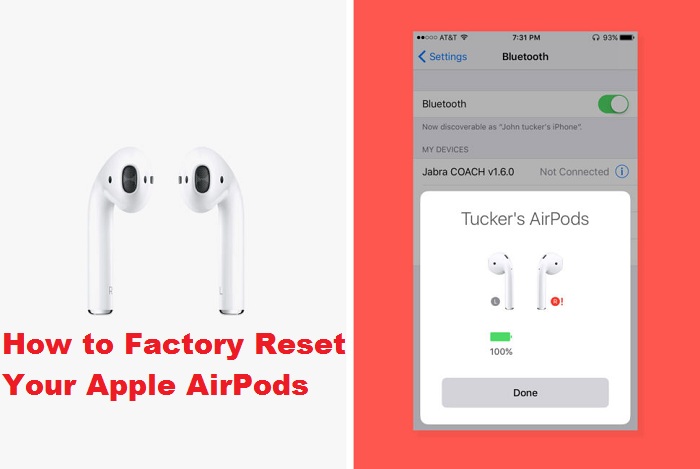
In case you are facing trouble with your AirPods, then you need to reset the device instantly. You have to pursue these instructions to hard reset your AirPods:
Understanding Lights on AirPods
Apple provides a single flashing light indicator underneath the hood of your device’s charging case. If you are facing various lights flashing issues on your AirPods, then it means that there are various issues with your device.
In case you have decided to perform a hard reset on your AirPods, then you have to know what the particular light means and what it signifies.
Checking Battery Status
Users can’t predict the exact battery power left on their AirPods, but if you view a green light flashing while the AirPods are placed in its case, then it means you have a lot of power left in your AirPods battery.
In case the green light flashing and the AirPods are not in its case, then it means the case needs at least one remaining charge to boost the power of your AirPods.
When the amber light is flashing once the AirPods are connected to the charger, then it means that the device is charging.
However, the user can’t see the particular power percentage on the device, but the lights are good indicators of power left in the battery.
Performing Hard Reset
In case you are facing issues with your AirPods, then performing hard reset sometimes troubleshoots the problems.
Resetting is one of the quick ways to resolve various issues on your device. Resetting also fixes issues related to audio and battery problems. Pursue these guidelines to fix these issues mentioned above by performing a reset on your AirPods:
Firstly, open the case of AirPods.
Then, tap and hold down the tab located at the back of your AirPods.
After that, wait for some time for the light to flash.
Release the tap once the light flashes red.
After this procedure, the AirPods disconnects from all the connected gadgets. To connect again, you have to undergo the setup wizard. You have to wait until you see the light flashing on your screen. It signifies that you are trying to establish secure connections with various devices.
Mostly, these issues can be fixed by the methods mentioned above. In case you are not satisfied with these methods, then you may proceed with other instructions.
I’m Emma Justin . I’m a web developer living in USA. I am a fan of technology, entrepreneurship, and web development. I’m also interested in education and writing. You can visit my company website with a click on the button above.
Widgets are mobile applications that run on the main screen of any handset. These apps can be related to weather forecasting, news, device optimizing, music, time and date, location, video playing, or health and activity tracking and much more. In this article, we have mentioned the best Android Widgets that are free to use and.
Many of these widgets come preinstalled on the device. However, you can add more of these apps to your device, by downloading them from the Playstore. The store contains a vast amount of these widgets built by various well-known developers. Some handset manufacturers like Samsung offer widgets exclusively for their devices, which can be downloaded from their Galaxy Store.
Adding Widgets to Home Screen
In this article, we have purposely mentioned the steps for Android OS widgets. If you want to add the widgets to your home screen on an Android device, you can follow these easy steps:
Long press at the empty space on your home screen. A pop menu will appear on your screen.
In that menu, you will see the option of Widgets, click on that.
Long press on the widget, which you want to apply on your home screen.
Drag the widget and drop it on the place where you want to apply it.
Free to Use Android Widgets
You can add from a wide range of widgets available on the Playstore. You may find some of them already installed on your device. However, if the ones which are in trend, are not on your device, you can download them from Google Play. In this article, we have mentioned some of the widely used Android Widgets that are free for downloading. These widgets, however, may have in-app purchases which you can do to upgrade the widgets for extra features.
1Weather Forecast Radar
As the name suggests, this is one of the best and widely used Android Widget for weather forecasting. This mini-application is highly customizable and provides well-researched details regarding the weekly weather forecast and future weather predictions. The application can be customized in many shapes and sizes. For customizing the widget, you need to tap on the widget and then customize it accordingly. Once you are done with installation and customization, set some settings for the widget and turn on your location along with the data and then, you may see the weather forecasts according to the set location.
Custom Switches
You can use this widget to create shortcuts for the applications or features which you use very often. Instead of going to the menu list, again and again, you may simply place a shortcut regarding a particular application or feature in this widget. Some of the settings which a user uses very often are Bluetooth, Location, Airplane Mode, Brightness and some specific apps. So, the shortcut for all these can be created and placed in the Custom Switches widget. All the shortcuts will get put on your home screen in the Custom Switches widget. Once you click on any of the shortcuts which are placed in the widget, you will get redirected to its main settings, from there you can easily customize the settings in a short duration.
Battery Widget Reborn
With the help of this widget, you can monitor the battery life of your device. In this widget, you can customize texts and backgrounds. It is available in two versions. In the first version, it can show the options like remaining battery and the temperature in a circular form and in the other version, it shows a graphical representation of the battery usage and time accordingly. You can select the desired version which you want. This mini-app helps a lot to the users, and up to a great extent to the visually impaired people. You can use it for regular battery updates.
Flashlight+
If you want to turn on or off your Flashlight in a matter of seconds, you may use the Flashlight + widget. When you are in an urgent need of a flash, this widget is very useful as it turns on the Flashlight of your phone with just one tap. You will not have to open up the above notification panel and search for the flashlight option. Simply tap on this widget, and it will turn on the Flashlight of your handset in seconds. It also includes a compass for navigation purposes.
SoundHound
This widget is the best if you want to search for any track related to any music genre. If you want to listen to a particular track so eagerly, but you don’t remember the name of the song or its lyrics anymore, however, if you remember the tune of the track then simply hum the melody on this widget. Once you hum the tune, it will try its best to provide you with the results you were seeking. This widget is pretty more advanced when compared to Google’s music search feature.
Blue Mail Widget
As the name suggests, this mini-app is particularly related to mailing services. You can set almost every mail account in this widget. It supports all. This application lets you track your inbox from your home screen, without opening any specific app related to your mail account. You can view multiple email accounts by adding more of them to the widget. The widget will create a dedicated folder for each of the mailing accounts. With the help of this widget, you can also set reminders to follow up, a particular mail regarding any specific task. The widget will notify you about the task which needs to be done at a specific time.
Event Flow Calendar
This widget lets users keep track of their plans or events. With the help of this widget, you can view calendar events for up to three months. This android widget gathers information from multiple calendars and shows you the most accurate and precise information of the events. It can also show local weather reports. You can get reminders on your home screen with the help of this widget if you sync it with the Event Flow of Google Calendar.
Slider Widget
This is the best widget in terms of basic volume and brightness customizations. This mini-app lets you control the volume of your media, ringtone, and also alarm volume. It also lets you increase and decrease the brightness of the device accordingly as desired. This widget has four different configurations for volume and brightness settings. This is a pretty handy widget for volume and brightness settings as you don’t have to press the volume button regularly or go to the settings and find the volume adjustment settings and display settings. You can do all that with just one tap.
My Data Manager
The best way to keep track of your data is using some handy tool which can show you your data usage in a while rather than searching for the data manager in the settings to check your data usage. This can be done with the help of My Data Manage widget. It is one of the most extensively used data monitoring widgets as it lets users check their data usage directly from their home screen with just on tap. The widget, when placed on the home screen, takes a rectangular formation, which looks impressive and justifies the dimensions of the device. You can monitor your mobile data, Wi-Fi usage, your texts messages, phone call durations as well as the data usage while roaming. With the help of this widget, you can set the data usage limit if you are sharing your data through a hotspot connection with others. As soon as the data usage reaches the limit, you will get notified by the widget about it. This is the best way to track data usage, especially if you are sharing your data with others.
I’m Emma Justin . I’m a web developer living in USA. I am a fan of technology, entrepreneurship, and web development. I’m also interested in education and writing. You can visit my company website with a click on the button above.
Nowadays, video games can be played from anywhere around the world. Be it your home while you are on your route to the office or in a public place. You can play a game from your handset, tablet, laptop, or portable gaming console. Be it an Android device or an iPhone, and there are a vast number of games available on almost all platforms. In this article, we have mentioned some of the most popular with which you can explore the world. If you are trapped somewhere or want to spend your time while you are traveling from one spot to another, you can have some fun by playing these games. They are available on both Android as well as iOS. We have mentioned them below.
Seashine
It is one of the best games available in the mystery genre. It is simple to play in which you explore the dark underwater world full of deadly creatures. In this game, the player takes the role of a little jellyfish, searching for a route for coming out of the vast underwater cave. You will have to complete the aim as soon as possible, and if you took a long time to come out of the cave, you would get eaten by the enemies around you. Also, before your light gets vanished, you need to go out of the cave. The game somehow will give you an experience of the movie Finding Nemo. The game is available on both Android and iOS and is free of cost for both the platforms.
Feist
Feist is an action-adventure, and an easy playing game with controls actions like forward, backward, and jump. In this game, you are given the role of a tiny fur creature who has to save his mate from enemies. He has to make way for himself through the obstacles he has to face in the forest while he is on his way to save his mate. The game is terrifying, alarming as well as beautiful in terms of its actions and adventures. It is free and is available for download in Android as well as iOS.
Mars: Mars
This game is very simplified as it has user-friendly controls. You have to guide a player who has been sent on a Mars Mission. You need to keep on using the jetpack to reach from one platform to another, and if you fail to land on any of the platforms, your player gets exploded. Also, it would be best if you kept on collecting coins in the game. When you have an adequate supply of coins, a new astronaut with new skills is sent by the MarsCorp. The game is free and available on Android, as well as on iOS. However, you can make in-app purchases if required during the gameplay.
The Trail
It is one of the best role-playing-games where you can create a customized character, interact with others, hunt, trade things, and build your own house. There’s hardly any interruptions in between the gameplay, which makes it pretty impressive for playing. The location where you are exploring things will look a bit similar to West America, where you have to make a proper identification of yourself by building your empire. The game is free of cost for both Android and iOS.
Samorost 3
It is an adventure game based on puzzles. In this game, you have to play as a dwarfish creature who is supposed to travel through space to discover mysteries. The player can visit any of the alien worlds for adventures, and to find the clues on how to progress in the game, Samorost 3 is based on Jim Henson’s The Dark Crystal and a Studio Ghibli movie. It is a paid game that is available for both Android and iOS. The cost of the game is $4.99, which is reasonable.
Pavilion: Touch Edition
Like Samorost 3, this game is also a puzzle-based adventure game where you have to move the character through various mazes. The character is small, and there will be a series of mazes where he will have to work strategically for exploring the pathways for proceeding further in the game. This game is pretty impressive in terms of animation and exploration. It has received numerous awards for its designs, tactics, and overall graphics. The application is available for both iOS as well as Android. Like the game, as mentioned earlier, Samorost 3, this is also a paid one. You can purchase it at $3.99 only.
OPUS: Rocket of Whispers
It is a pretty well story-based game. The game can be played in Story as well as in the Regular Mode It is based on the revival of civilization from the after-effects of a pandemic. The game consists of a pair of characters among which one guides another to make the rocket work again so that with the help of the rocket, they can actually help the souls of the deceased to reach stars. The game is available on both platforms: Android and iOS.
I’m Emma Justin . I’m a web developer living in USA. I am a fan of technology, entrepreneurship, and web development. I’m also interested in education and writing. You can visit my company website with a click on the button above.