Showing posts with label Features. Show all posts

Friday, 16 October 2020

4 New Android 11 Features That You Can Use Today to Make Your Life a Little Easier

Google is rolling out its new OS (Android 11) for compatible devices around the world. With the new OS, Android users are also getting access to many great features that can provide them a great user experience and, at the same time, make their life a lot easier. So, today we are going over four new Android 11 features that you can use today to make your life a little easier. Let us learn about these Android 11 features in detail.


Use Google Assistant with Third-Party Apps

For many year’s Android users were unable to use Google Assistant with third-party apps like Snapchat, MyFitnessPal, etc. But not anymore. Recently Google has partnered with 30 different apps Walmart, Mint, Spotify, etc., and now Android 11 users will be able to use Google Assistant with these apps. For example, you can say, “OK, Google, open Miley Cyrus on Snapchat.” Amazing, right. Besides this, Google is also planning to enter into a partnership with many other apps, and the details about these apps will be available in a few days.

Identify Who Is Calling You

Most of us have been using apps like Truecaller, etc. for identifying the person that is calling us. But Android 11 replaces the need of these apps thanks to its “Verified Calls” feature of the “Phone” app. Yes, now, the “Phone” app that you use to make and receive calls will also allow you to identify the person calling you. Besides this, it will automatically filter spam calls for you. Similarly, Google has also launched a “Verified SMS” feature for the “Message” app.

Turn Noises Into Push Notifications

All kinds of alarms use sound to alert us. But if you are wearing headphones or listening to loud music, you may not hear these sounds. However, by using the new “Sound Notification” feature of Android 11, you can solve this problem. This feature allows your phone to listen to all kinds of sounds around you and then alert you with a push notification. Amazing, right? To activate this feature:

  1. Open your mobile’s “Settings” menu.
  2. Now click on the “Accessibility” option and enable the “Sound notification” feature on your mobile.

Screen Sharing and Video Voicemails Feature for Google Duo Users

Suppose you depend upon Google Duo for communicating with your friends, family, and teammates. In that case, you will surely love these fantastic new features of the Google Duo app, which will allow you to communicate with them more effectively. To use the “Screen Sharing” feature during a call:

  1. Click on the overflow button during your video call and then hit the “Screen Share” option.
  2. Now, you will see a warning popup on your screen.
  3. Finally, click on the “Start Now “option to activate the “Screen Sharing” feature of the Google Duo app.

To send “Video voicemails” using the Google Duo app:

  1. Call the person to whom you want to send the video voicemail.
  2. Now click on the “leave a video message” option.
  3. Next, follow all the on-screen instructions of the app to record your message.
  4. Finally, click on the “Send” option to send your “Video Voicemail” message.

Our View

It’s a great move by Google to introduce such outstanding features for Android users that will provide them a great user experience and make their life a little easier. If you are an Android 11 user, then check out these outstanding features on your mobile. You will fall in love with these fantastic features.

Was this helpful? Leave your comments and opinions below this article.

Hi, I’m Kinsley. I’m a web developer living in Pontiac, USA. I am a fan of web development, programming, and entrepreneurship. I’m also interested in innovation. You can read my blog with a click on the button above. adailyo.com

Source: 4 New Android 11 Features

Friday, 18 September 2020

5 Gmail Features You Should Know About

 Gmail isn’t just about writing and sending emails. It’s also about sending those emails with all the ease and perfection. Whether you use Gmail for work or personal tasks, you should know how to make the most of your email client. So, here we are with five very useful tricks while working on Gmail to become a pro at it. 


Mute Noisy Email Threads

Being a part of a group email conversation is great. But oftentimes, such conversations end up annoying you, especially if you are trying to work on your laptop. Multitasking is a myth and you need to concentrate on a single task to get the best results. When it comes to completing office tasks, you have got to focus. Talking about this in times of coronavirus pandemic when most people are working from home, there are already enough distractions to deal with during your work hours. All of it added with continuous group emails calling out to you can be irking as well and distracting. If you no longer care to follow a highly active and chatty group email, you might consider opting out.

To do so, open the thread, then click the hamburger menu (triple-dot button) at the top and select Mute. This will not only shut the notification sound but also move the conversation to your archive folder, and it will remain there even when more replies arrive. When you are finally free from your work and your curiosity to know what’s up with everyone hits you back, then you can always find the same email thread in the All Mail view of Gmail. If now, you choose to unmute the conversation, you can do so by clicking the X button next to the Mute label at the top of the conversation page.

Snooze So You Don’t Forget

Do you often forget to respond to an email that you opened while you were in the middle of something else? Probably yes, right? Well, Gmail has a snooze button for messages just like your alarm that you apply when you aren’t ready to get out of the bed. So, the next time when you aren’t ready to respond to an email put it on snooze. How? Here it is:

Open the message in your inbox that you want to snooze and click the little clock button on the right. Then you will be asked to select a later time and date which can be today, tomorrow, next week, or whenever you want the message to appear back at the top of your inbox.

Choose Your Tabs

Gmail understands how overwhelming it can be to search for an important email from the pool of thousands of others that don’t even bother you. So, it did an excellent job to filter out your inbox so the useful messages go to your inbox while the rest get banished to the Social or Promotional tabs.

So, to choose the tabs that you want to appear at the top of your inbox, click the settings icon and then select See all settings. On the page that appears, select Inbox, and choose the tab you want at the top in the Categories section.

Email Large Attachments via Google Drive

Do you often get stuck while sending attachments because of Gmail’s 25MB size limit? There is a smart way out of this problem. You can choose to send such files via Google Drive. To do so, click on the little Drive icon at the bottom of Gmail’s compose window. This will direct you to your Drive storage and allow you to attach files or a link in your email. Please remember that the Google Drive formats, like Docs, Sheets, Slides, and so on can only be sent through a link. However, other file types, such as PDFs, Word docs, images can be sent as an attachment or a Drive link.

Use Advanced Search

Gmail’s search tool is advanced as it can be. Surely, you must have used the search bar in Gmail to dig up old emails using a keyword or sender’s name, but this search bar is capable of a lot more. If you click the down-arrow button on the right of the search bar, it will open Gmail’s advanced search panel. In this section, you can search for date ranges, by subject line, attachment size, the words that your email might include, and the words it does not include. We hope that with these few tips and tricks you will be able to handle your Gmail inbox like a pro.

Hey there, I’m Oliviya . I write blog posts, I’m a web developer living in USA. I am a fan of photography, technology, and design. I’m also interested in arts and Graphic Design. Also Read my Blog, setupost.com

Source: 5 Gmail Features You Should Know About

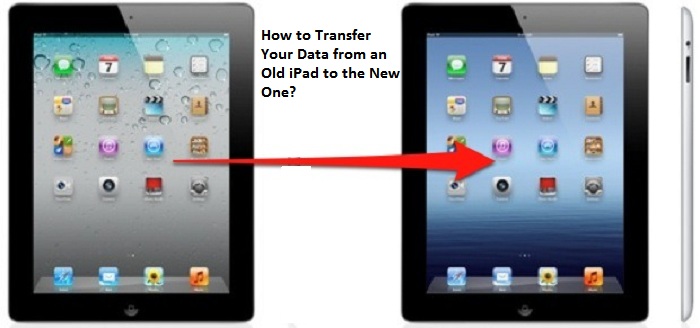
How to Transfer Your Data from an Old iPad to the New One?

  If you have recently purchased a new iPad running on iPadOS 14 and want to transfer all your data and old memories from your previous iPad...