Wednesday, 1 July 2020

4 Best virtual machine software for Mac

Are you looking for a virtual machine software for your Mac? If you are, then your search is over because today, we are going to share with you four virtual machine software for Mac that you can use to run Operating systems like Windows, Ubuntu, Linux, etc. So, let’s have a look over them.

Parallels Desktop 15
Parallels Desktop 15 is one of the best and most popular virtual machine software for Mac in the market. It is a perfect pick if you need to run Windows programs that don’t have Mac versions or make the switch from PC to Mac and transfer your data. Besides Windows, the software can also run other popular operating systems like Linux, Ubuntu on it. The software comes with 2 operation modes. The first mode is the Coherence mode, which allows you to hide the Windows interface while you are using Windows application and the second mode, which allows the Windows interface to occupy your Mac’s screen completely.  The software can be used to run some of the heaviest Windows applications on Mac. Besides this, the software comes with many great features like:
  • One-click install.                
  • Optimized for macOS Catalina                      
  • Complimentary upgrade to the latest version.                        
  • Customizable touch Bar for Windows applications.
  • Virtual RAM for each VM.
  • Virtual CPUs for each VM.          
  • Integration support for Chef/Ohai/Docker/Vagrant.
  • Network conditioner to simulate speeds and test.                  
  • Visual Studio Plug-In.        
  • Office 365 integration.
  • Retina display support.                         
  • Support for business cloud services.                     
  • 24/7 phone and email support.                             
  • Centralized administration and management.                         
  • Unified Volume License Key and more.
The software is available in 3 versions in the market
  • Standard Edition ($80 per month).
  • Pro Edition ($100 per month).
  • Business Edition ($100 per month).
VMware Fusion 11.5            
VMware is another great virtual machine software like Parallels desktop 15 that uses virtualization technology that creates a virtual machine on which you can run another operating system like Windows, Linux, Ubuntu, etc. The software runs on your Mac PC like any other app using which you can easily install your Windows and other Windows programs and apps. Once the installation of Windows is complete, you can run all the Mac apps and Windows together at the same time. The software also has 2 operation modes
  • Full-screen mode– This mode hides the Windows interface allowing you to use the Windows Application directly from the Mac interface.
  • Fusion unity mode-This mode allows you to use your virtual machine applications from the Mac desktop without the VMware Fusion interface.
The software comes with feature like:
  • Windows 10 support.
  • Optimized for macOS Catalina (10.15).                 
  • Complimentary upgrade to the latest version.
  • Powerful graphics.
  • Fusion REST API.
  • vSphere Connectivity.
  • Dark mode.
  • Simplified OS install, and more.
There are two versions of Fusion that are currently available in the market:
  • Standard Fusion ($80 per month).
  • Fusion Pro ($160 per month).
Oracle VM VirtualBox
Oracle VM VirtualBox is open-source and free to use visualization software that can be used to run popular operating systems like Windows, Linux, Solaris, and OpenBSD on your Mac. Additionally, the software comes with many great features like:
  • 3D virtualization.
  • Easy file transfer between the guest and the host operating system.
  • It can be installed on Windows, Linux, and Solaris.
  • Run Multiple OSes simultaneously.
  • Supports the transfer of VM from one host computer to another with a different operating system.
The software is completely free to use, but it can be very hard to use for a beginner. So, if you are just starting out creating a virtual machine it would be better to use software like Parallel desktop 15 and VMware Fusion 11.5.
Cloudalize
Cloudalize is another great virtual machine software for Mac users, but unlike other VM software on the list, it does not run the operating system on your Mac as the host. Instead, the software has the Windows OS hosted on the cloud, and all you have to do is log in to your account to access Windows.  Additionally, it does not require you to get involved in any kind of software installation and maintenance and is very less demanding when it comes to computer resources required for running it. The software comes with many great features like:
  • Pre-configured and licensed Windows OS on cloud
  • Require limited resources
  • Full administrative rights for installing applications
  • It can be used on multiple devices etc.
The price of the Cloudalize depends upon the OS, and GPU usage, and the only downside of the software is that it currently supports only Windows OS.
I’m Emma Justin . I’m a web developer living in USA. I am a fan of technology, entrepreneurship, and web development. I’m also interested in education and writing. You can visit my company website with a click on the button above.

Tips You Must Know About Windows 10 Start Menu

The Start menu of Windows 10 offers you a lot more than you think. The Start menu takes you to the applications installed on your PC, allows you to change settings, etc. Many other things that can be customized via the Start menu of the Windows 10, that are mentioned as follows:
  1. You can remove the apps or items you don’t want to see on the Start menu.
  2. Content suggestions can be disabled that appear whenever you search for something.
  3. You can disable viewing the recently accessed apps.
  4. You can also disable viewing the newly added applications to your PC.
  5. You can access the Start menu in the full-screen mode.
  6. Colors can be customized for the Start menu and the Taskbar.
  7. You can attach any item to the Start menu.
The Start menu’s major settings are discussed below in detail, so let’s get to know more about it:
  1. Live Tiles and Groups
Applications, folders, documents, etc can be pinned to the Start menu and are named as tiles. To pin the item to the Start menu, right-click on the same and click on the ‘Pin to Start’ option. You can also arrange these items in groups and categorize them by assigning names. The tiles can also be shifted and resized.
  • Set the Windows 7 classic look
You can compact the items and give your Start menu a classic look just as Windows 7. All you need to do is right-click on the item or tile and unpin it.
  • Use the Start menu in full-screen
You can use the Start menu in the full-screen mode by making changes to the settings and the steps to do the same are:
  1. Go to the ‘Settings’ app on your PC.
  2. Click on the ‘Personalization’ tab from the list.
  3. Tap on the ‘Start’ option from the toolbar present on the left side of the screen.
  4. Turn the slider on for ‘Use Start Full Screen.’
  5. You can also resize the Start menu by dragging it from the edges.
  6. Most used app
The frequently used applications appear in the Start menu, making it easy for you to access these applications without searching them. If in case, you want to remove the recently used apps section, you can do the same as per your convenience. The steps to hide frequently used apps are:
  1. Go to the ‘Settings’ app on your PC.
  2. Click on the ‘Personalization’ tab from the list.
  3. Tap on the ‘Start’ option from the toolbar present on the left side of the screen.
  4. Turn the slider off for ‘Show most used apps.’
  5. Hide the newly added apps or software
The recently installed apps and software can be removed from the Start menu the same as the recently used applications.
  • Content Suggestions
The Start menu suggests content based on your search history. Thus, you can disable the same by following the steps below:
  1. Go to the ‘Settings’ app on your PC.
  2. Click on the ‘Personalization’ tab from the list.
  3. Tap on the ‘Start’ option from the toolbar present on the left side of the screen.
  4. Turn the slider off for ‘Show suggestions in Start.’
  5. Navigate the app list quickly
The steps to instantly navigate to the app list are:
  1. Click on the ‘Start’ button and then tap on the ‘All Apps’ option.
  2. Tap on any alphabet that appears on the window, and all the applications starting with that alphabet will appear on the screen.
  3. You can locate the application you want to use and get started.
  4. Customize Properties
The steps to customize the Start menu properties are:
  1. Right-click on the taskbar of the Start menu and select the ‘Properties’ option.
  2. Tap on the customize button present under the Start menu.
  3. A new dialog box will appear that offers you a lot of customization options. You can make changes as you like.
I’m Emma Justin . I’m a web developer living in USA. I am a fan of technology, entrepreneurship, and web development. I’m also interested in education and writing. You can visit my company website with a click on the button above.

10 Best Episodes of Stranger Things Ranked

One of Netflix’s most popular series that struck a chord with both kids and adults is ‘Stranger Things’. Produced by the Duffer Brothers, Stranger Things is a sci-fi horror TV series that first made waves since its release on July 15, 2016. Stranger Things received outstanding reviews from both critics and viewers and many praised Netflix’s effort of creating their original series. Set in the town of Hawkins, Indiana in the 1980s, the story follows the life of teenagers Dustin Henderson, Lucas Sinclair, Mike Wheeler and Will Byers.

In a strange turn of events, Will’s disappearance causes a chain reaction of the discovery of a secret government facility in Hawkins National Laboratory and their confidential experiment which results in the creation of a dimensional portal. This portal unleashes a deadly creature who belongs from the ‘Upside Down’ and the facility performs experiments on humans based around this portal. This facility is also where we meet Eleven, a young girl with supernatural powers. The story quickly moves from being a rescue mission to eliminating the creature. While the series’ four seasons may not seem enough for many, the storyline seems to be perfectly stretched without making compromises on character development. Here are the best episodes from the series ranked on their ability to keep the audience engaged, shock the viewer with surprise or to make them feel good inside.
Season 2, Episode 2: Trick or Treat, Freak
The Halloween episode of Stranger Things somehow feels befitting as the characters dress up as characters from nostalgic movies like Ghostbusters. The episode sees the initial beginning of the relationship between Hopper and Eleven as she comes back to life after being killed in the first season. Barb, who has become a famous character among the fans is seen being mourned over by Steve and Nancy.
Season 3 Episode 7: The Bite
The episode before the finale is meant to hype-up the ending and many think ‘The Bite’ did a great job of accomplishing that. Nancy sheds her good girl persona and starts firing rounds of shotgun eventually leading to her character development as one of the strongest. Eleven is still in focus and while her powers have restrictions, her build-up to the finale is definitely worth watching.
Season 2 Episode 6: The Spy
Absent from the episode is Eleven and while many may see her as one of the main protagonists, the beauty of other characters and their advancements keeps the story going on even if the main character remains out of the picture. This episode sees Steve and Dustin starting off as friends and other kids joining Steve to fight the Demon Dogs. Max explains her story to Lucas and Will is pressured to act as a spy for Mind Flayer.
Season 3 Episode 4: The Sauna Test
Taking a break from the nostalgic trip to the 80s, the episode ‘The Sauna Test’ brings the show’s pleasant themes to rest when Billy starts attacking the kids. With the initial hatred towards the kids which triggers Billy unleashing his wrath on the kids, the episode makes for an adrenaline-inducing fight sequence. The episode sees Billy taking Eleven by throat which is the episode’s most terrifying scene.
Season 1 Episode 6: The Monster
One of the moments made famous by Dustin is when Mike is forced by his bullies to jump off a cliff only to be saved by Eleven, and Dustin screams “She’s our friend and she’s crazy” at the bullies. This also the episode where Eleven finally sees her abilities in a positive light thanks to Mike and his constant upliftment.
Season 2 Episode 9: The Gate
The finale of season 2 is a rather eventful one. While finales of other seasons were jam-packed with edgy moments, the finale of season 2 is much calmer and slower compared to the rest. While there are many key moments in the episode to make it interesting, the part where Steve blows up a part of Upside Down is undeniably the best.
Season 2 Episode 8: The Mind Flayer
Probably one of the saddest moments in the entire series was this episode which saw Bob win over Joyce only to get killed by the Demodogs as he couldn’t make it in time. Many feel that this episode marked the cruel and gruesome nature of the storyline which puts the entire series ahead of its game. Other notable events in the episode include the exciting escape from the Hawkins Lab and the fight between Eleven and a Demodog.
Season 1 Episode 1: The Vanishing of Will Byers
If there is one episode that captures the core of Stranger Things as a series is the pilot episode of the series. Many think of it as one of the best works in the series and if not preceded by the intense season-enders, the pilot episode might just have taken the top positions. The first episode sets the mood for the entire series right from its first few scenes. The seemingly harmless story is met with unusual turns in a very short amount of time and this is exactly how the rest of the series looks like.
Season 3 Episode 8: The Battle of Starcourt
The longest episode in the series, the finale of season 3 brings many characters together, a scene which is rare in the entire season. Many think that the characters embarking on their own journey by the end of the episode is understated. However, the core of Stranger Things remains the journeys of groups which is why the Scoop Troop’s handling of communications led to one of the best scenes in the episode which is Suzie and Dustin singing ‘The Neverending Story’ theme song. Many notable scenes from the episodes include the fight at Starcourt Mall where Eleven seems to have lost her powers and forces all the others in the group to brainstorm.
Season 1 Episode 8: The Upside Down
The end of season 1 was definitely one of the best moments on the entire run of the series. The beauty of the episode lies in the closings of many chapters that the season started with. Right for Eleven striking down her mad scientist ‘Papa’ and his accomplices with her powers while also managing to dive into the Upside Down to rescue Will and bring him back to life. We also get to see the end of the Demogorgon and Eleven’s goodbye to Mike as she gives it all to save Will. The end of the first season truly remains as one of the most exciting episodes in the series which puts all the build-up to rest.
I’m Emma Justin . I’m a web developer living in USA. I am a fan of technology, entrepreneurship, and web development. I’m also interested in education and writing. You can visit my company website with a click on the button above.

10 Best Soccer Games That Will Get Your Thumbs Twitching!

Football has a long history in the sports fraternity. The transition of this world sport into the world of video games has been a tricky affair. But only a few have managed to perfectly blend football and graphics for a tailor-made virtual experience for gamers. So, here are the top 10 best Soccer Games that have managed to make a mark for themselves in the video game world.
1. Virtua Striker
Virtua Striker, originally developed by Sega in 1994, was the first of its kind. It was the first association football game that used the 3D graphics of a computer. This game was also applauded for its early use of texture mapping. It was originally an arcade-style game that could be operated with the help of three buttons- one for passing, one for long balls, and one for shooting the ball.
The game consists of a simple knock out tournament similar to a FIFA world cup with each match lasting about two minutes by default plus added time. An extra minute is given as sudden death if the match ends in a draw. The game operates with just three buttons.
In all, it can be said that the game was very elaborate for its time.
2. Fifa Street 2005
Fifa Street was initially developed by EA sports in 2005 as a Spin-off of the FIFA series football video game. This version was created for PlayStation, Nintendo Gamecube, and Xbox with its cover featuring the Brazilian football star Ronaldinho. The commentary in the background was given by MC Harvey of the So Solid Crew.
The game was developed as a reduced version of the complete game (FIFA) into a simple arcade-style game. As the name suggests, the game paid heed to flair, trickery, and style as opposed to the FIFA video game, which focussed more on gameplay and tactics.
The PlayStation 2 version of the game was awarded the Platinum Sales Award from Entertainment and Leisure Software Publishers Association (ELSPA). However, it received mixed reviews on other platforms.
3. Sega Soccer Slam
The game was developed by Black Box games but published by Sega in 2002 for PlayStation and Xbox and Gamecube.
This particular game is different from traditional soccer games as it does not include mainstream soccer rules in the game. It is an exaggerated interpretation of soccer. The characters have been given the ability to punch other players and eliminate rules such as corner kicks, free kicks, and throw-ins, etc. The game is packed with a variety of modes such as the exhibition mode, challenge mode, journey mode, and quest mode. The mix of special abilities and football made for an interesting game that can be reconciled with the reviews published for the same.
4. Nintendo World Cup
Technos Japan developed this computer game with cartoon-like graphics in the year 1990 for the family computer and the Gameboy. It is a localization of Nekketsu High School Dodgeball Club: Soccer.
The game includes only 13 national teams competing in a world cup to become number 1. At its core, the game follows the rules of football, but with noticeable differences. Each team has only six players. You control only one of them, but you can give commands (Pass/Shoot) to the others. Offsides are non-existent, and fouls are not punished. A game without fouls ought to be interesting! Players can be knocked out by repeatedly sliding, tackling, or shooting them. Afterward, they will stay down for the rest of the half. Players can also use up to five “super shots” per half- these powerful, odd-looking shots are used whenever a player does a bicycle kick or a diving header. The game has been made very interactive, considering the year it was developed for the audience.
5. Super Mario Strikers
Super Mario strikers or Mario Smash football is a full-on soccer game developed by Next Level Games for the Gamecube in the year 2005. Along with the component of Mario, which has already made it interesting, there are other features of this game, which makes it even more engaging for gamers.
Some fans might like the second part of the game better than the first part, but the latter has its perks.
6. Pro Evolution Soccer
This video game was developed and published by KONAMI in the year 2001. PES has had its longstanding rivalry with the EA SPORTS FIFA due to the features which are quite similar in both the games for, e.g., the unique celebration of each player.
The pro evolution soccer series strives to emulate real soccer with a plethora of clubs, international teams, and modes for selection, which makes for a very interesting experience. It is a must-try for people who like FIFA.
7. FIFA 11
The first of the FIFA series was developed and published by EA SPORTS in 1993. The developers continually published a new part to the series with subsequent improvements until they finally hit the mark with their entry in 2011 with their FIFA 2011.
FIFA 11 replaced the manager mode with the career mode, which gave the user freedom to play as a manager, player, or a new feature called player-manager. Various other tweaks and additions were made, which made one of the hottest selling games its time.
8. FIFA 20
The Gaming Giant EA Sports is being applauded for the improvements and changes to the latest edition of the FIFA series, ie. FIFA 20. The game has been made more interactive than its other counterparts. In older versions, you could heedlessly charge at the defender, hoping to get the ball, but this isn’t the case in the latest edition. It has been incorporated with more real-life situations, which means you will have to think before making a move.
IGN.com has given it a decent 7.6 for its overall performance.
9. Football Manager
As the name suggests, it is a game that involves the management of football teams. It is a series where the game gets serious. The tactical depth given to the managers and the coaches is insane. All tactics and strategies are to be devised by the manager, i.e., the user. Therefore, a user can prove himself to be a football managing wiz or a complete fool.
It has been incorporated with many real-life situations that the manager might actually face in real life, which makes it quite comprehensive. There is almost nothing in the game that you can’t do.
10. Sensible World of Soccer 2007
The original version was developed by Sensible software in 1994. The version which was released in 2007 was a remake of the 90’s game with enhanced graphics. It was made available for consoles, including the Xbox360, Amiga because friends could now play online. There were different modes, including the manager mode, that the users could explore, which made it more immersive.
I’m Emma Justin . I’m a web developer living in USA. I am a fan of technology, entrepreneurship, and web development. I’m also interested in education and writing. You can visit my company website with a click on the button above.

2020’s Top 5 Portable Laptop Power Banks

Every machine dies out after a few hours of work. Laptops also need to fuel themselves from time to time, so that they never interrupt your productivity. Most of the laptops come with a charger, but carrying it everywhere is not a practical option, but you can opt for a power bank instead.
There are a lot of power banks available for your laptop, but if you want to handpick the best one for your laptop based on its performance and longevity, then you can find your match from the products mentioned below.
Mophie Powerstation AC
It is a versatile power station that has an AC adaptor and gives the power of up to 100W to recharge a laptop, or you can plug it in with other mobile devices. The universal rechargeable battery of 22000 mAh has built-in safety features so that it doesn’t interrupt with your devices. It can charge USB-C laptops and other devices with up to 30W of charging speed. It can be used to recharge the power stations as well. Its additional ports include 2.4A quick charge USB-A port to connect a third power device. It provides battery life to smartphones for up to 200 hours, large tablets up to 21 hours, USB-C laptops up to 15 hours, and a DSLR camera up to 8 hours. Moreover, the design of the power bank covered with fabric wrap provides durability and ease of use, while costing only $200. If you purchase it with a cable, the price can stretch up to $250.
RAVPower 27000mAh
This power bank can recharge both mobiles and home appliances with the power of up to 200 watts due to its built-in AC output. It provides more convenience as it allows multiple charging through its 1 Type-C 3A output and two USB iSmart 2.4A port. You can charge your iOS devices and Macbook as well. The built-in vents inside this power bank cool down the battery without letting any dust inside. Other features include an energy-saving mode that powers the portable charger within 8 seconds. The LED battery indicator displays the battery level of the power banks. The battery of the power bank can be recharged very quickly due to its robust 19V/1.6A DC inputs. It comes at an affordable price of $130 only.
MAXOAK 5000mAh
This power bank comes with a lot of additional products such as a manual, multifunction bag, laptop charger connector, DC cable, home charger, and more. Due to the 14 DC connector, it is compatible with various laptops, and the K2 portable battery pack charges the laptop two times faster while saving power. It can charge a laptop with up to 135 watts, and it supports two types of recharge procedures, i.e., AC wall out and a car outlet. The power bank can last up to 8 hours, depending on the number of devices you use to recharge. It supports both charging devices and recharging itself at the same time while providing six outputs for different digital devices. It is specially designed for laptops and the built-in multi-protective features ensure protection from overloading, low current, over current, etc. This device costs up to $130 depending on variants.
HALO 44400
It is both a portable charger and a car jump starter that is packed with 44,400mWh of power and is wireless that makes it more portable. The AC/DC outlet supports small appliances. The powerful power bank protects you from mishaps like a short-circuit and is always ready for any task. It has the power to jump your SUV for 296 times and any other standard car for up to 217 times. It’s two USB 2.4V charging output provides instant charging to mobile devices. You can charge up to four devices at a time, as it is equipped with two USB ports and an AC/DC outlet. It costs $140 and is available in four different colors. The All-in-One Emergency Kit comes with a package of car charger, wall charger, LED flood light, jumper cables, and more that can hold its charge or battery for up to 18 months.
Omni 25600mAh
This power bank includes USB charging cables and USB-C charging cable. It will solve all your charging issues as it is compatible with Qi cell phones and thus can charge devices wirelessly. The maximum capacity of this power bank is 92wh or 25,600mAh. You can enjoy the benefits of extensive features that include 60W USB-C PD for laptops, 10W wireless charging, QC 3.0 USB-A, and 60W adjustable 12/16/19/24 volts of DC output. This power bank is compatible with MacBook Pro and Surface Pro. You can use it to charge laptops, tablets, Nintendo Switch, Go Pro, CPAP machines, and more. It retails for $130 only.
You can find your best pick out of these. If you are looking for an all-rounder, then you can opt for Mophie Powerstation AC, but it costs between $200- $250, depending on the inclusion of a cable. The rest of the power banks also work fine and are available at an affordable price point, unlike Mophie Powerstation AC.
I’m Emma Justin . I’m a web developer living in USA. I am a fan of technology, entrepreneurship, and web development. I’m also interested in education and writing. You can visit my company website with a click on the button above.

Top 10 Apps for Linux in 2020

Linux is an open-source operating system that has many variations depending on the type of user. Ubuntu, Fedora, Kali, and Debian are some of the distributions available for any user to download. Linux is known as one of the best-operating systems mainly because of its open-sourced nature. This allows anyone to download the operating system and test software that runs on Linux. This also allows Linux to be one of the most secure operating systems as anyone can report a bug if it is found in the operating system. Thus hackers find it more difficult to crack through Linux than many other operating systems. Linux is also known to be light-weight which increases speed and allows older systems to run smoothly. Due to all these features, Linux makes a great alternative to Windows or Mac and is used by many developers to write applications on. For everyday use, Linux has many apps that boost your productivity and allow you to add more functionality to the operating system. Here are some of the best apps that you can install on your Linux system.
  • Firefox
Firefox is one of the world’s most popular internet browsers and comes as a default for many Linux distributions like Ubuntu and Linux Mint. Firefox has a simple and minimalistic user interface and retains its similarities from its Windows counterpart. Firefox can download various plugins which will allow you to play any kind of video format in your browser. Firefox is the best internet browser for any Linux system.
  • Thunderbird
If you want a powerful email client, you can’t go wrong with Thunderbird. Just like Firefox, Thunderbird is made by Mozilla. Thunderbird manages all of your inboxes in a crisp and organized manner. You can link as many accounts as you want and can fine-tune your preference with email settings that cater to specific email providers. It also provides a fully functional Calendar app that can organize your schedules easily.
  • LibreOffice
Windows and Mac systems boast their Microsoft Office and iWork, Linux has its own set of free and open-sourced office management tools and LibreOffice is one of the best among them. LibreOffice comes on par with all of the features provided by both Microsoft Office and iWork. It comes pre-installed on Ubuntu and comes with a whole set of other handy applications including Draw, Math, and Base.
  • VLC Media Player
While Linux natively has its video player, it can be easily replaced by VLC Media Player. Boasting features like Playback control, manual subtitles, and format conversion, VLC Media Player makes for a perfect video player. VLC Media Player also supports a lot of video files that aren’t necessarily supported by the built-in player.
  • Shotcut
Are you looking for a free video editor for Linux? Shotcut is a free video editor that works on many operating systems like Windows and macOS. It features 4K video editing and allows you to add various effects to your videos. While it may not compete with Final Cut or Adobe Premiere, it is handy for basic use that is suitable for an everyday user.
  • GIMP
GIMP (GNU Image Manipulation Program) is one of the best cross-platform image editing tools available for Linux. Right from re-touching your images to adding layers for a professional result, GIMP presents all of its robust features to the user in a simple and intuitive interface. GIMP is a good Photoshop alternative while being easy to use at the same time. GIMP is a free-of-charge application and is one of the best tools for Linux.
  • Audacity
Audacity is your answer to all the questions which involve audio. From becoming a multi-device recorder that can record from various channels to allowing you to professionally edit your music to enhance it using features like noise reduction. The file formats supported by Audacity include MP3, OGG, WAV, and many more. Tutorials on using Audacity can be found easily, thus making it your audio editing companion for Linux.
  • Visual Studio Code
If you are into coding, Visual Studio Code can be of great help. It changes your coding user interface which can normally get confusing very fast. Visual Studio Code is Microsoft’s free text editor which is supported by Debian and Red Hat. It also offers plugin support which means you can extend its functionality even further. It also changes the UI for the text editor which makes it ideal for coders who require text editors for their coding like Python.
  • VirtualBox
VirtualBox is your answer to running a virtual OS on your Linux system. If you miss your Windows or Mac system and want to use it simultaneously on your Linux system, VirtualBox can allow you to do that. It supports a variety of operating systems including DOS, Windows 3, Solaris, and OpenBSD. Developed by Oracle, the software is free-of-charge and also offers an Enterprise edition for your workspace solutions.
  •  ClamAV
While Linux is known for its robust security features, there might be a possibility that harmful files are accidentally downloaded on your system. The files can spy on your data, thus compromising your security. Clam AV is an antivirus scanner that helps you find such files and eliminate them. ClamAV is usually run on servers but it can also be used on a Linux system. You can install ClamAV through the commands ‘clamtk’ and ‘clamtk-nautilus’ through Synaptic. This way you can scan individual files through the command line.
I’m Emma Justin . I’m a web developer living in USA. I am a fan of technology, entrepreneurship, and web development. I’m also interested in education and writing. You can visit my company website with a click on the button above.

10 Best Alternatives to Adobe Photoshop

Adobe’s creative suite has become one of the most successful bundles for creative and among the many applications, Photoshop is the most popular of them all. With the capabilities of professionally re-touching images or altering your vector graphics into an image, Adobe Photoshop is one of the best solutions to image-editing in the market. However, many times the use of Photoshop may be limited to cropping your image or putting a filter on it, and while Photoshop does offer these basic features, buying the application on a subscription fee for basic needs seems wasteful of resources. Here are a few alternatives to Photoshop that offer similar functionalities.

  • PicMonkey

PicMonkey has one of the simplest user interfaces in the entire list, but do not let the minimalist appearance fool you as the image editor can offer a host of options for you to create perfect visuals. Right from adjusting your photo to adding frames and stickers, the application lets you take over all the editing options by just uploading your picture on the website. The application is free of cost and is available for use through its website.
  • Canva
Canva has recently gained fame for offering an unlimited amount of customization so that you can personalize your images. Canva is perfect for new users as its template-based process is easy to understand for beginners. Canva also offers many graphic elements that allow you to create designs and offers some of Photoshop’s popular functionalities like layering. Canva is a free-of-charge application that can be accessed on any device through its website. 
  • Pixlr Editor
Pixlr Editor seems like Photoshop’s twin as both of their interfaces are quite similar. Pixlr is faster and much more intuitive than Photoshop. With many express features, Pixlr can be very fast with image editing using features like one-click enhancement. However, learning Pixlr from scratch can be a task as there aren’t many tutorials available for new users to learn about its features. Pixlr can be accessed on any device through its website.
  • GIMP
GIMP is well known in the Linux world as one of the best image editing software and its Windows and Mac alternatives are nothing short of excellent. GIMP (GNU Image Manipulation Program) offers a comprehensive set of tools in a fun and easy interface while its functionalities are robust enough to handle RAW files at ease. With a plethora of features like Blending, Layering, and custom brushes, this image editor can be your go-to alternative for Photoshop. The best part about GIMP is that it is free-of-charge and is available for Windows, Mac, and Linux so that you don’t miss its functionalities on any kind of a system.
  • Acorn
While it cannot completely replace Photoshop, Acorn and its Mac-based support system make it apt for all kinds of users. Be it light to moderately heavy tasks, Acorn can handle all of those with lightning-fast speeds. Their development programs let the users into the experience with visual tutorials that can be easily followed. Some of Photoshop’s prominent features are also added in the application including custom brushes, PSD import, and export among many others. Acorn is available for Mac at $49.99
  • Pixelmator
This Mac-only image editor has received many updates recently and they have made it one of the best Photoshop alternatives available for Mac. The user interface is similar to that of Photoshop and experienced users may feel right at home. Its multi-monitor support makes for a great workstation alternative and a thriving community of users can help you learn the application in no time. Pixelmator also takes advantage of all the Mac features that are missing from Windows. Pixelmator costs $29.99 making it one of the cheapest options for image editing.
  • Paint.NET
If you are looking for a free Photoshop alternative designed specifically for Windows, Paint.NET is the best option you have. The origin of the name comes from the famous drawing application for Windows called Paint and it was designed to replace the application. Paint.NET has a built-in image editor that works perfectly with the drawing tools offered to the user by the application. While it may not provide many advanced features like Canva or GIMP, if your work doesn’t involve heavy image editing, Paint.NET is the perfect tool for you.
  • Serif PhotoPlus X6
Serif PhotoPlus X6 has a loyal base of users that prefer it’s simple yet efficient interface. PhotoPlus X6 is a great application due to a host of features like processing of RAW images, editing multiple images, and fast response time. The best part of the Serif PhotoPlus X6 is its growing community that offers insights into the application for both new and experienced users. The community helps its users with video-based tutorials as well as written instructions that can be easily used to increase productivity. Serif PhotoPlus X6 is available for Windows at $89.99.
  • Corel PaintShop Pro X6
Corel is widely known as a close second in the image-editing space and its PaintShop Pro X6 proves it. With a community that aims to educate new users about features and functions, the PaintShop Pro X6 is a perfect image editing application for the starters. The application supports advanced skills like Auto Selection, Smart Selection, Brush editing, and much more. PaintShop Pro X6 is perfect for people who deal with a large set of images and prefer bulk-editing. Costing around $69.99, the application is available for Windows.
  1.  Adobe Photoshop Elements 12
While this isn’t exactly the full version of Photoshop, it offers all the basic functionalities of Photoshop without compromising on the crucial bits. Be it pictures for social media or your birthday card, Photoshop Elements will solve your problem. Photoshop Elements also works on layers like its parent and provides a unique tutorial-like guide that will help you to learn more. Available for both Mac and Windows for USD 69.99, this makes for a great ‘lite’ version of PhotoShop.
I’m Emma Justin . I’m a web developer living in USA. I am a fan of technology, entrepreneurship, and web development. I’m also interested in education and writing. You can visit my company website with a click on the button above.
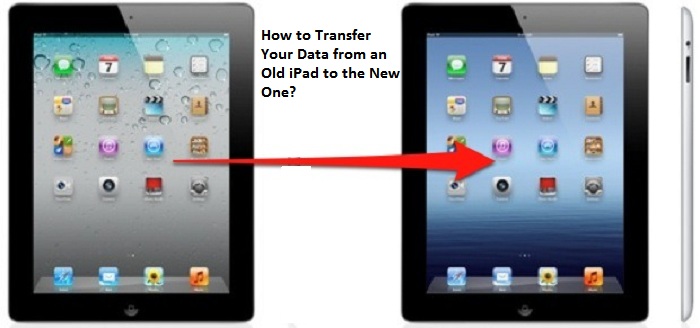
How to Transfer Your Data from an Old iPad to the New One?

  If you have recently purchased a new iPad running on iPadOS 14 and want to transfer all your data and old memories from your previous iPad...